




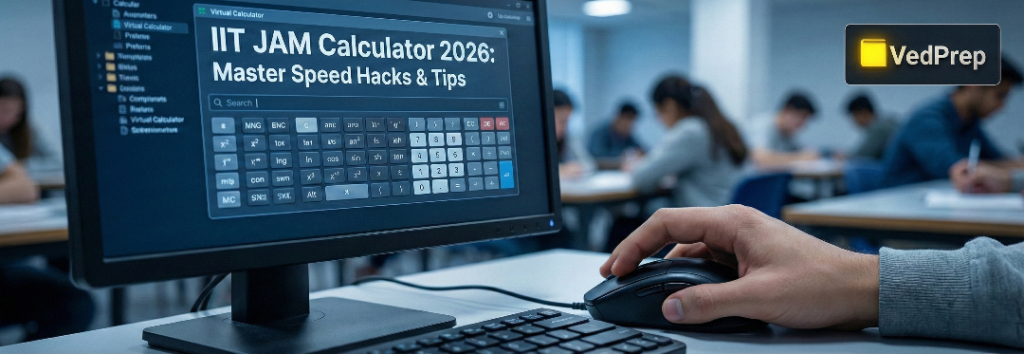

The IIT JAM Calculator is a mandatory, on-screen virtual tool used for solving Numerical Answer Type (NAT) questions. Unlike physical devices, it requires mouse-click inputs for every operation and follows a specific “Value then Function” input sequence.
Understanding the IIT JAM Calculator Interface
The IIT JAM Calculator is distinct from the scientific calculators students typically use in university labs. This is a non-scriptable, browser-resident utility incorporated right into the test display. The arrangement is consistent: basic math functions (summing, taking away, multiplying, splitting) are grouped on the right side, whereas advanced mathematical features (sine, cosine, log, powers) are situated on the left.
A critical feature of the IIT JAM Calculator is the dual display. The top display box shows the sequence of keys pressed, acting as a history log, while the bottom box shows the current entry or result. This distinction is vital for verifying that you have entered data correctly before pressing the “equals” sign. Since the keyboard is disabled during the exam, every digit and operation must be clicked using the mouse, which significantly alters the speed at which you can calculate compared to manual typing.
Virtual Calculator for IIT JAM vs Physical Calculator
The transition from a handheld device to an on-screen tool is often the biggest hurdle for aspirants. Comparing the Virtual Calculator for IIT JAM vs Physical Calculator reveals fundamental operational differences that can cause errors if not practiced.
Physical calculators usually allow you to type a function first and then the value (e.g., sin > 30 > =). In contrast, the IIT JAM Calculator often requires the reverse order for single-variable functions. You must enter the value first, then click the function key. For example, to find the log of 20, you type 20 and then click log. Students accustomed to physical calculators often stare at the screen waiting for a cursor prompt that never appears. Furthermore, the virtual interface lacks the tactile feedback of buttons, increasing the risk of “missed clicks” where an input isn’t registered.
IIT JAM NAT Questions Calculator Strategy
Numerical Answer Type (NAT) questions are high-stakes because they lack options to guide you. A robust IIT JAM NAT Questions Calculator Strategy involves more than just punching in numbers; it requires a disciplined workflow to prevent cascading errors. Securing a top rank in IITs such as IIT Bombay demands flawless precision in NAT questions, making mastery of the virtual calculator’s unique interface your strategic advantage for speed and accuracy.
First, always write down the formula and the values on your scribble pad before touching the mouse. The IIT JAM Calculator does not retain a long history of calculations. If you make a syntax error in a long chain, you often have to start over.
Next, steer clear of “cascading calculations” for intricate formulas. Rather than tackling a kinetic energy problem in one extended sequence of entries, divide it up. Determine the top part and bottom part independently. Employ the memory buttons (MS for saving, MR for retrieving) to retain these mid-process figures. This IIT JAM NAT Questions Calculator Strategy minimizes the risk of bracket errors, which are common when nesting multiple operations in a single line.
IIT JAM Calculator Shortcuts & Tricks
As key combinations are inactive, “optimizations” here denote process enhancements that trim moments from each query. Implementing these IIT JAM Calculator Shortcuts & Tricks can accumulate to save 10–15 minutes over the entire paper.
- Master the Memory Keys:
Most students ignore the M+, M-, MR, and MC buttons, yet they are the most powerful tools available.
- M+ (Memory Add): Adds the current number on the display to the memory.
- MR (Memory Recall): Brings the stored number back to the display.
- MC (Memory Clear): Wipes the stored data.
Using M+ allows you to solve summation series or integration approximations without writing down every single digit, preventing transcription errors.
- The “Inverse” Toggle:
The IIT JAM Calculator lacks a “Shift” key. Inverse trigonometric functions (like arcsin or arccos) are typically found beneath their standard counterparts, or sometimes accessible through a specific check-box or switch depending on the interface design. Familiarity with their placement avoids unnecessary stress during the test.
- Pre-defined Constants:
Opt for the pre-loaded $\pi$ and $e$ keys instead of manually entering $3.1415$ or $2.718$. This approach guarantees the highest level of accuracy is preserved during your computation, which is vital for NAT problems where the margin for acceptable responses might be tight.
Common Operations and Input Logic
Correctly entering data is non-negotiable. The IIT JAM Calculator follows a specific syntax that can be counter-intuitive.
- Logarithms: To calculate log(50), input 50 → log.
- Exponentials: To calculate e^4, input 4 → Exp (or e^x).
- Roots: To calculate the cube root of 27, input 27 → x^(1/3) or use the specific cube root key if available. For arbitrary roots like the 5th root of 32, input 32 → y^x (or x^y) → 0.2 (since 1/5 = 0.2) → =.
- Trigonometry: Always check the radio button for Deg (Degrees) vs Rad (Radians). The default is often Degrees, but many calculus problems require Radians. Failing to switch this mode is a leading cause of negative marks in physics and math sections.
Critical Perspective: The “Mouse-Click” Efficiency Trap
While the IIT JAM Calculator is a powerful tool, over-reliance on it is a strategic failure. A common “efficiency trap” is using the calculator for simple arithmetic like 25 x 4 or 100 – 35.
Moving the mouse, aiming the cursor, and clicking each digit takes significantly longer than performing the mental math. In the high-pressure environment of the exam, the cognitive load of interacting with the interface can actually break your problem-solving flow. The calculator should be reserved strictly for non-integer calculations, logarithms, exponentials, and complex decimals. For everything else, manual calculation or mental math is faster and less prone to “missed click” errors.
Practical Application: Solving Kinetics Problems
Consider a First-Order Kinetics problem in Chemistry requiring the calculation of a rate constant $k$.
Formula: $k = (2.303 / t) \times \log(a / (a-x))$
Values: $t = 50$, $a = 100$, $x = 20$.
Inefficient Approach:
Typing 2.303 / 50 * log ( 100 / 80 ) =.
This risks order-of-operation errors if the calculator doesn’t interpret the string linearly.
Optimized IIT JAM Calculator Approach:
- Mental Math: $100 / 80 = 1.25$.
- Calculator Step 1: Input 1.25 → Click log. Result is on screen (~0.0969).
- Calculator Step 2: Click * → Input 2.303.
- Calculator Step 3: Click / → Input 50 → Click =.
This method reduces the number of clicks and isolates the logarithmic operation, ensuring the IIT JAM Calculator processes the correct value.
Common Pitfalls to Avoid
Even with a solid IIT JAM NAT Questions Calculator Strategy, students fall into predictable traps.
- Bracket Imbalance: The virtual calculator allows brackets, but deeply nested brackets ((2+3)*5) are hard to track visually. It is safer to solve the innermost bracket, get the result, and proceed outwards.
- Floating Point Confusion: Do not round off numbers in the middle of a calculation. Store the long decimal in memory (MS) and use the full precision for the next step. Round off only at the very final answer to meet the decimal places specified in the question.
- Panic Clearing: Pressing C (Clear All) instead of CE (Clear Entry). If you mistype one digit, CE removes just that entry. C wipes your entire calculation history. Knowing the difference saves you from re-entering long data strings.
Final Thoughts
Mastering the IIT JAM Calculator is not about mathematical ability; it is about operational fluency. At VedPrep, we integrate these technical efficiencies into our rigorous coaching to ensure you are exam-ready on all fronts. From calculator speed hacks to deep concept mastery, let VedPrep guide your journey to a top IIT rank.
For a step-by-step visual guide on implementing these shortcuts, watch this VedPrep expert tutorial on mastering the IIT JAM virtual calculator.
Frequently Asked Questions (FAQs)
Is a physical calculator allowed in the IIT JAM exam?
No. Physical calculators, smartwatches, and mobile phones are strictly prohibited inside the examination hall. You must use the on-screen virtual calculator provided within the exam interface.
What is the IIT JAM virtual calculator?
It is a scientific calculator embedded in the computer-based test interface (typically the TCS iON platform). It features basic arithmetic functions alongside scientific operations like logarithmic, exponential, and trigonometric functions.
Can I use the keyboard to type numbers into the JAM calculator?
No. The virtual calculator is "mouse-only." You must click the on-screen buttons using the computer mouse. Keyboard input is disabled to prevent malpractice.
Is the IIT JAM calculator interface the same as a standard CASIO scientific calculator?
No. The interface functions differently. It uses Reverse Polish Notation (RPN) logic for some functions (e.g., entering the number first, then the function) and standard logic for others. It requires specific practice.
Does the calculator have a specific key for 'Pi' ($\pi$)?
Yes, there is a dedicated button for $\pi$. However, check the question instructions. If the question specifies "take $\pi = 3.14$", type 3.14 manually to avoid rounding errors in the final answer.
How do I calculate roots other than square roots (e.g., cube root)?
To find the $n$-th root of a number $x$, use the $x^y$ function. Enter the number $x$, click $x^y$, enter the reciprocal of the root (e.g., $0.333$ or $1/3$ calculated previously), and press equal.
What is the correct sequence to calculate logarithms (log/ln)?
In the virtual calculator, you typically enter the number first, then press the function key (log or ln). This is the reverse of physical calculators where you press the function key first.
How do I store values in the virtual calculator's memory?
Use the MS (Memory Store) button to save the displayed number. To recall it later, press MR (Memory Recall). This helps avoid transcription errors during multi-step NAT calculations.
How do I use inverse trigonometric functions (e.g., $\sin^{-1}$)?
Click the Inv (Inverse) checkbox or button. This toggles the sine, cosine, and tangent buttons to their inverse functions ($\sin^{-1}$, $\cos^{-1}$, $\tan^{-1}$).
Why is my answer slightly different from the official key?
This often happens due to rounding approximations at intermediate steps. Keep values in the calculator memory (MS/MR) rather than rounding them off on your scribble pad.
What if the calculator freezes during the exam?
This is rare. If the interface lags or freezes, immediately raise your hand to alert the invigilator. Do not attempt to refresh the page or restart the system yourself.
I accidentally closed the calculator. will my calculation be saved?
Generally, no. Closing the calculator window resets the current display to zero. However, values stored in Memory (MS) might persist depending on the specific software version.
How do I calculate $e^x$ (exponential function)?
Enter the value of $x$ first, then click the Exp or e^x button. If the button is not visible, look for the Inv checkbox to toggle ln to e^x.
Can I use the calculator for matrix operations?
No. The IIT JAM virtual calculator does not support matrix operations, simultaneous equations, or integration/differentiation solvers. It is purely for arithmetic and scientific values.
How strictly are significant figures monitored in NAT questions?
Very strictly. The calculator provides high precision. You must round off only at the final step as per the question's instruction (e.g., "round off to 2 decimal places").